

Every step of personal outreach, in one place.
Mage Mailer is organized around the work itself: find the right businesses, know who you are writing to, write like a person, send like a person, follow up everywhere, and stay compliant by default.
Section 1 — Find
Find the right businesses
Mage Prospect Finder
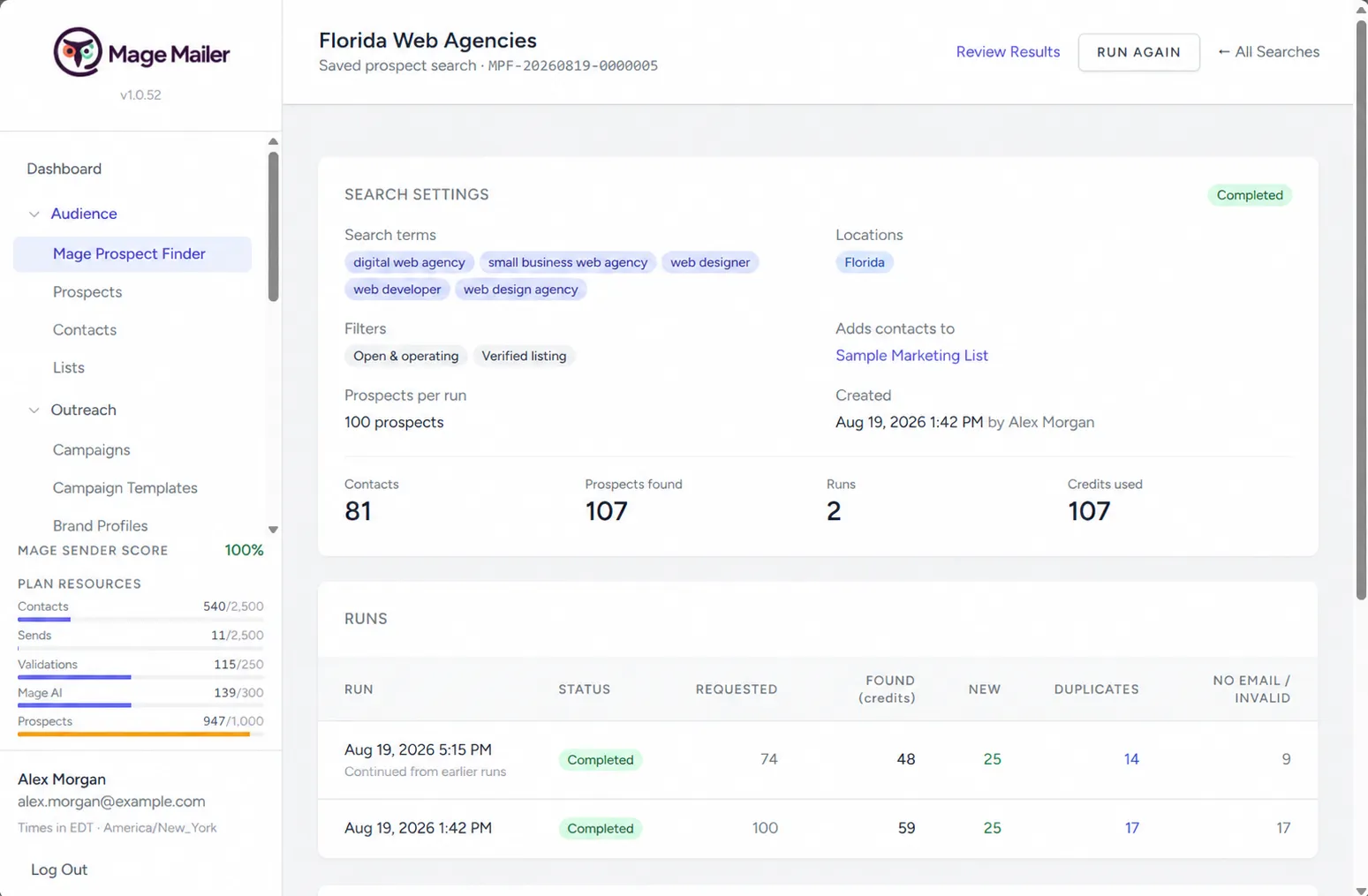
Mage Prospect Finder turns a business search into an outreach list — with the data to write something personal.
-
Mage Prospect Finder
Search terms × locations in one request, with quick filters and a chosen number of prospects per run.
-
Saved searches
Every search is saved with its settings, the list it feeds, status, last run, and contacts produced.
-
Search history
Per-run accounting: requested, found, new, duplicates, no-email-or-invalid, and credits used.
-
Prospects
Every business ever discovered, one row per business, with a self-applying filter bar and full stored detail.
-
Filters
With or without website, operational only, with phone, verified, good or bad rating, and more.
-
Contact enrichment
Emails with validator status, phone numbers, and the person found on the website.
-
Social profile discovery
LinkedIn, Facebook, Instagram, X, YouTube, and TikTok — for the person and the business.
-
Company Insights
Optional industry, size, employees, revenue, founded year, and company type.
-
Prospect Credits
One credit per standard prospect, two with Company Insights; reserved before a run and settled on what was actually processed.
Section 2 — Know
Know who you're writing to
Contacts + AI Research
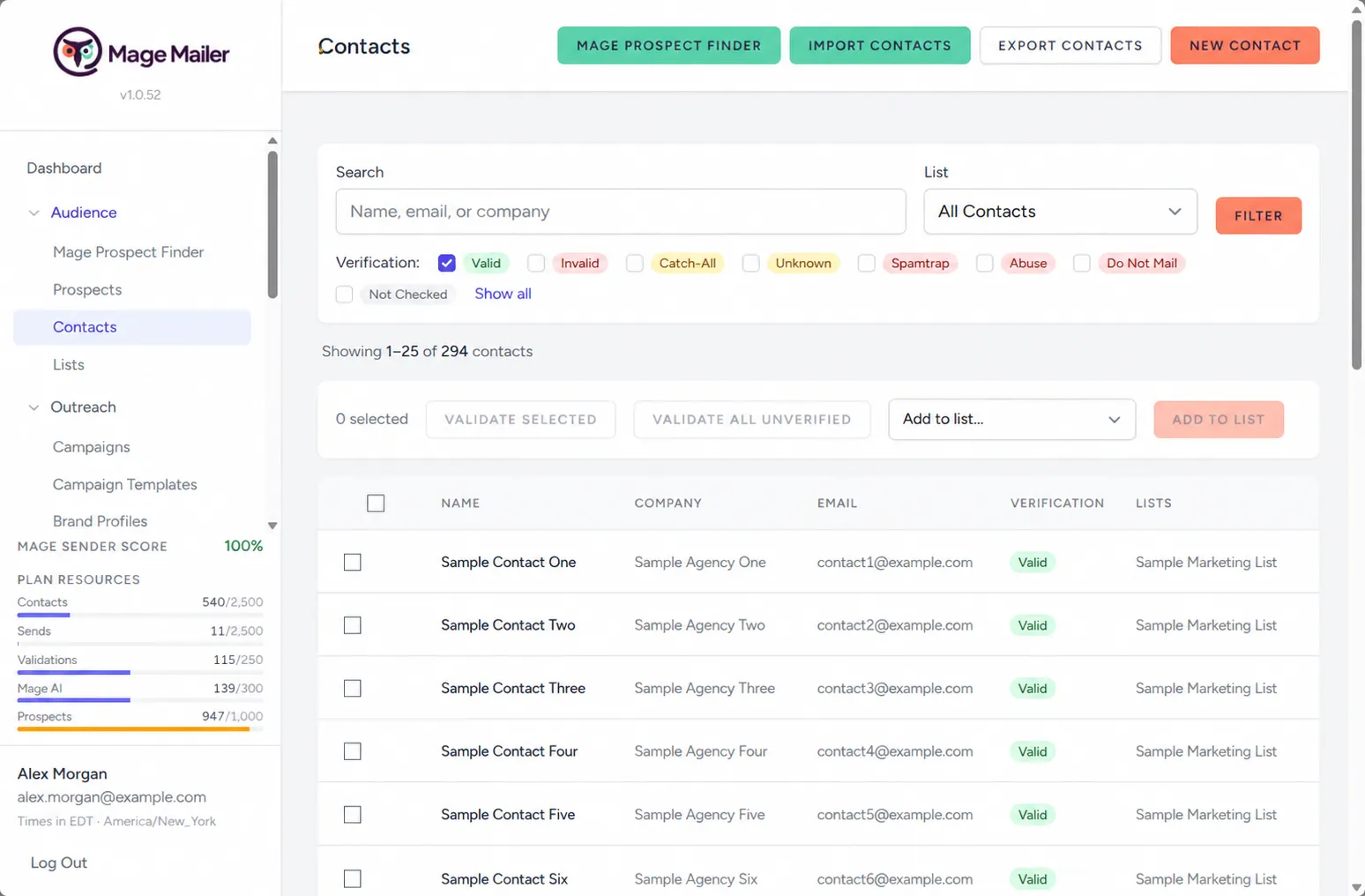
A contact in Mage Mailer is a dossier, not a row: everything the Finder found, everything Mage AI learned, and everything you have sent.
-
Contacts
Search, list-membership filters, validity and consent status, and bulk actions.
-
Contact profile
Name, email, company, title, phone, website, address, notes, social profiles, company insights, consent, and custom fields.
-
Prospect Finder data
Business facts, company insights, and the people found — carried straight onto the contact.
-
AI research
Web research on the contact and business, stored as findings and a briefing for reuse.
-
Website review
Mage AI reads the prospect’s site and extracts services, tone, claims, and specifics worth mentioning.
-
Email history
Every email sent, with a delivered / opened / clicked / bounced timeline.
-
Campaign enrollment
Which campaigns the contact is in and where they are in each chain.
-
Social and company information
Each profile is a link; a check mark shows it has already been worked from the Social Media page.
-
CSV import
Upload, map columns (with automatic guesses), and import without duplicating existing contacts.
-
Email validation
Validate one contact, a selection, or a whole list; invalid addresses are never queued.
Section 3 — Write
Write like a person, at scale
Mage AI
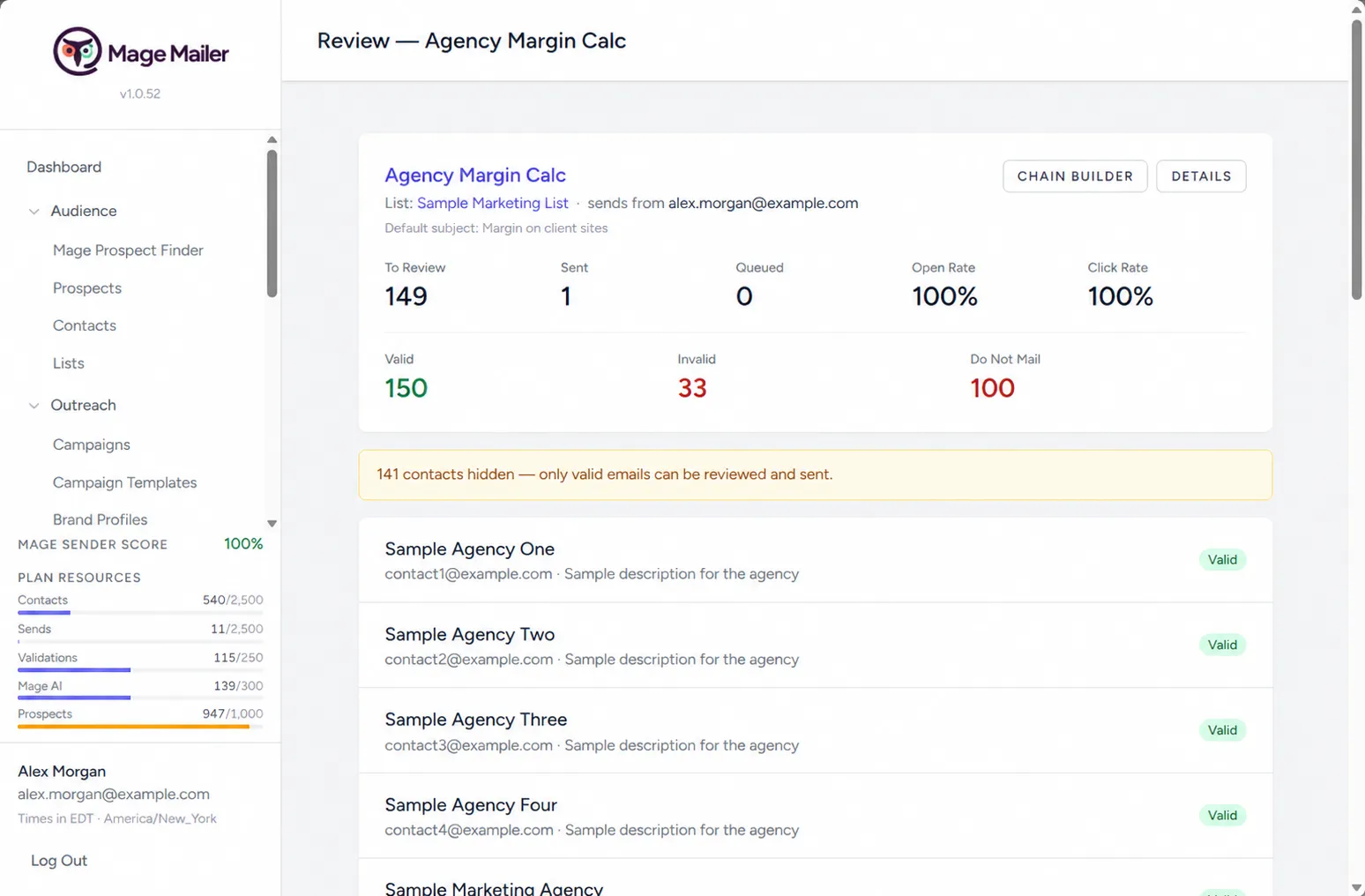
The writing step is a pipeline, not a text box: context in, a graded and revised draft out — and you still read it before it goes.
-
Mage AI
Research, website review, writing, grading and revision, image generation, and campaign planning.
-
Brand Profiles
Who the outreach is from: description, tone, colours, and a catalogue of products and services.
-
Product / service library
Select an offering and Mage AI writes about it and guarantees a link to it.
-
AI Instructions
Editable house-style, cold, and promotional instruction sets applied to every AI-written email.
-
Cold vs Promotional mode
Set per list, so every email is written with the right goal — a reply or a conversion.
-
Signatures
Designed HTML signatures, generated from your fields and assigned per list.
-
Placeholders
Merge tags such as {{First Name}} and {{Company}} with workspace defaults.
-
Media Manager
An image library for emails and signatures; AI-generated images land here.
-
UTM tagging
Every AI-written link is tagged for your analytics — signature links excepted.
-
Quality Check
A panel explaining what makes the final draft good, with scores out of five.
Section 4 — Send
Send like a person
Sending Queue + Send Limits
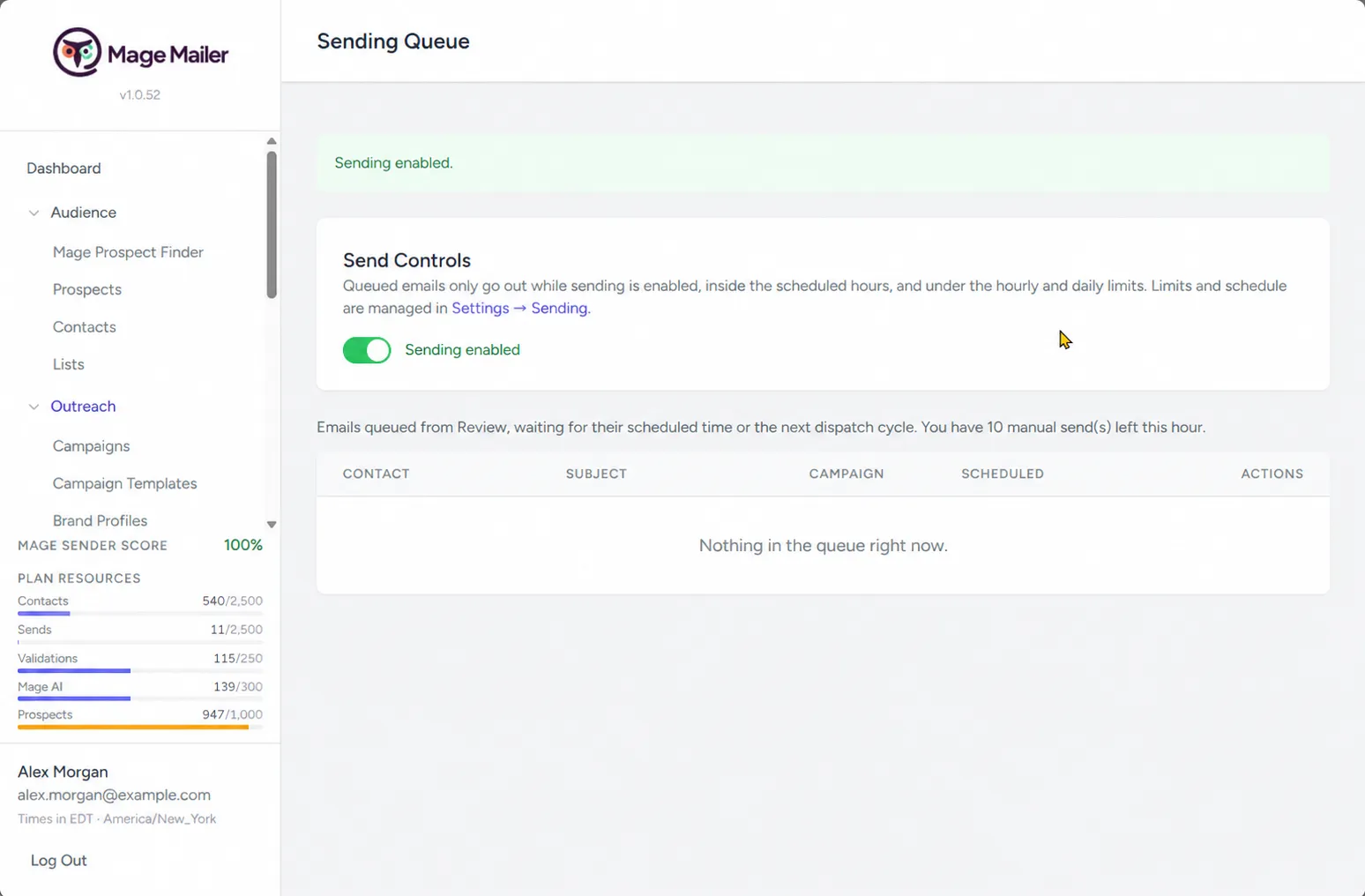
Nothing is ever blasted. The queue releases one email at a time, only inside your window and under your caps.
-
Review & Send
Per-contact review page: the contact on the left, the email for this contact on the right.
-
Send Now
Send immediately — after the compliance gate.
-
Add to Queue
Hand the email to the dispatcher, which paces it with everything else.
-
Schedule
Pick a date and time in your time zone.
-
Sending Queue
Everything waiting to go out, in order; pause, unpause, send now, or remove.
-
Send Limits
Emails per hour and per day for the workspace.
-
Sending windows
Days and hours emails may go out.
-
Email Accounts
Your sending identities, with From-name and Reply-To per account.
-
Authenticated domains
DNS records generated in-app, verified with one click.
-
Platform sender
No DNS access? Send from a platform-domain address with a required Reply-To to your mailbox.
-
Time-zone-aware scheduling
Every time shown and enforced in the workspace time zone.
Section 5 — Follow Up
Follow up everywhere
Campaign Builder + Social Media
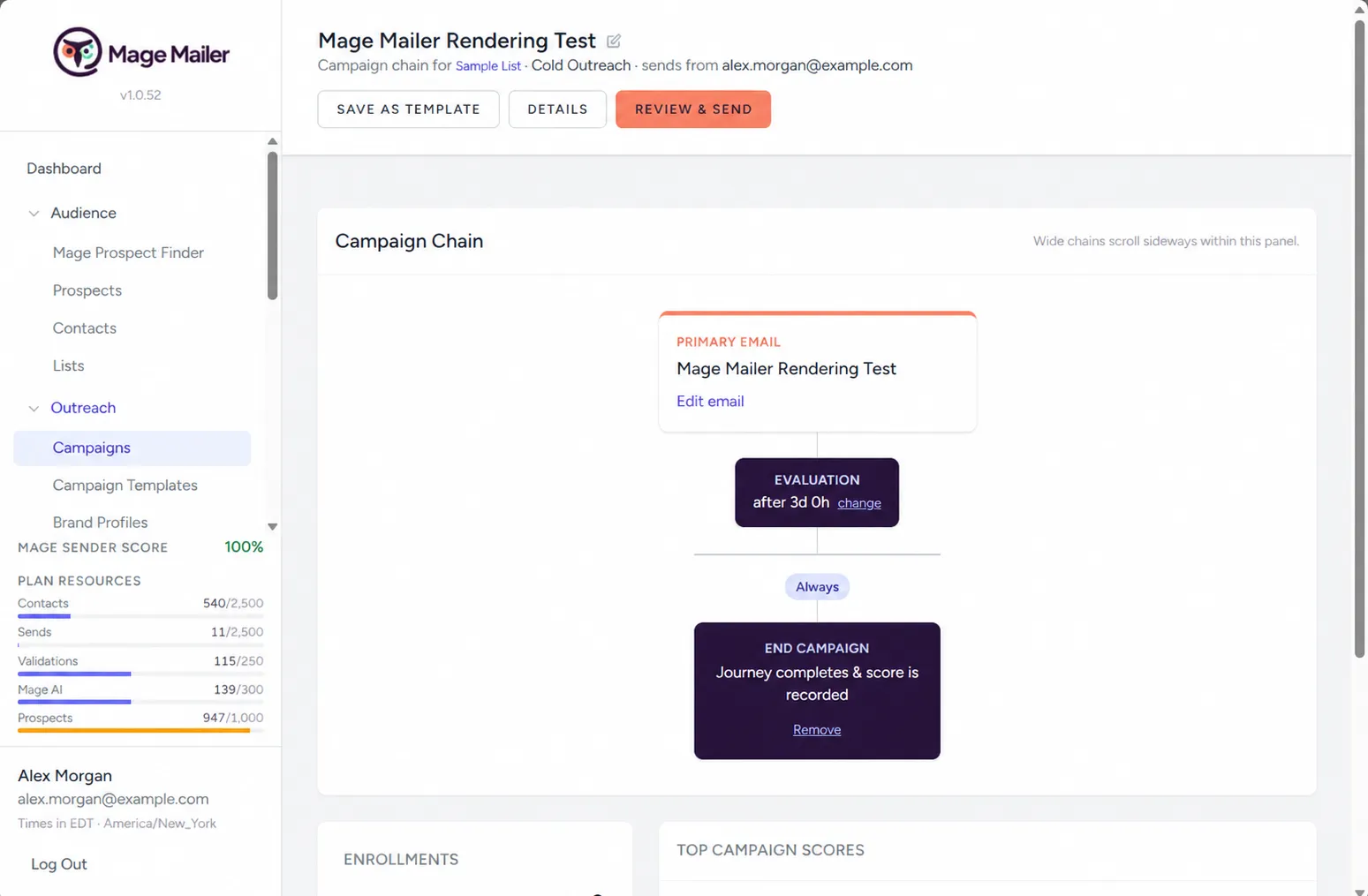
Follow-up is a sequence of email and connection, not a second blast — and every step is recorded in one place.
-
Campaigns
All campaigns across lists, with status, classification, sending account, and per-contact activity.
-
Campaign Builder
A visual tree: primary email → evaluation wait → branches → follow-ups or End.
-
Wait steps
Evaluation periods, in hours, between each step.
-
Opened / Not Opened / Clicked / Always branches
Conditional paths, one Always branch per level, no duplicate conditions.
-
Campaign Templates
Save any campaign as a template; create a new campaign on any list from it.
-
Drip Lists
New valid contacts are queued into the list’s campaign automatically.
-
Social Media worklist
Walk a list contact by contact, open each profile, do the outreach yourself, and mark it processed with a note.
-
Per-contact processed state
Who worked each profile and when, shown as a check mark on the contact.
Section 6 — Comply
Stay compliant by default
Email Compliance
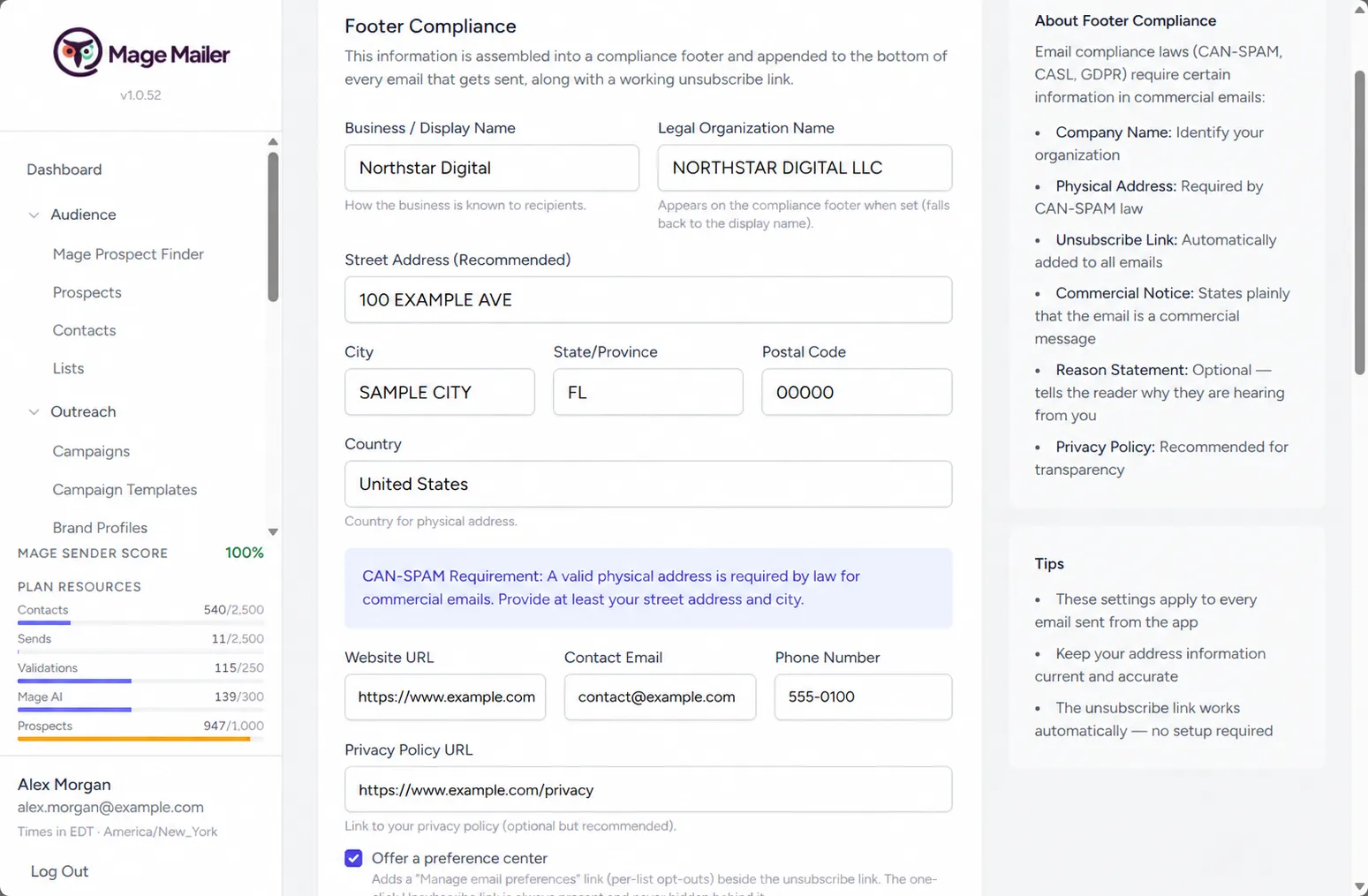
Built-in CAN-SPAM-style compliance features and safeguards — enforced in code, recorded in the audit log.
-
Email Compliance
The Compliance Profile: legal identity, physical address, website, contact email, phone, privacy-policy URL.
-
Suppression List
Unsubscribes, hard bounces, spam complaints, and manual entries — checked before every send.
-
Consent
Source and consent status on every contact, with opt-in / opt-out timestamps.
-
Unsubscribe
Signed per-recipient tokens, List-Unsubscribe headers, and a public preferences page.
-
Compliance gate
Suppressed, unsubscribed, invalid, consent mismatch, restricted country, incomplete profile — a failing check skips the send.
-
Compliance Audit Log
An immutable record of unsubscribes, preference changes, suppression, blocked sends, consent, and profile edits.
-
Provider events
Bounces, spam reports, and unsubscribes from the delivery provider processed automatically.
-
Bounce handling
Hard bounces suppress; soft-bounce threshold is configurable.
Choose your plan.
Starter, Growth, or Performance — the same workflow at every tier, with allowances to match how much outreach you do.